
An IT migration is like moving: by preparing carefully, you can avoid many setbacks. That’s why we’ve put together a comprehensive guide to a successful migration to VMware. It’s designed for businesses and IT professionals who want to migrate their existing infrastructure to a VMware environment. We cover:
- les étapes nécessaires,
- les méthodes disponibles,
- potential difficulties,
- best practices for ensuring a smooth and efficient migration.
Take Back Control of Your Cloud
What is migration?
Migration involves moving a virtual machine (VM) to a new host or a new storage location. The VM can be moved from one computing resource or storage location to another, and the migration can be performed either with or without service interruption.
Migration should not be confused with:
- Moving a VM from one inventory folder to a different folder or resource pool in the same data centre.
- Cloning a VM or copying its virtual disks and configuration file to the same vCenter Server system.
- Cloning and copying a VM in the same vCenter Server system.
Why should you migrate to VMware?
The goal of migration is to improve the performance, security, and day-to-day management of your resources. Among the most common objectives are:
- Change the compute resource on which the VM is running. For example, move a VM from one host to another host or cluster.
- Load balancing to optimise performance and resource utilisation.
- Co-locate VMs that communicate with each other so that application performance can be improved.
- Move VMs to reduce the range of failures.
- Migrate to new server hardware.
5 steps to take when migrating VMware
Migration planning
It is essential to fully understand the complexity of migration so that the necessary timeframes, tools, skills, and knowledge are available. Overall, you need to consider three factors:
- Definition of migration objectives (expected benefits, but also impact on the organisation and users).
- Drawing up a detailed schedule.
- Assessment of resources required (hardware, software and personnel, provisional budget).
The VMware documentation provides forms that allow you to specify all the details related to your migration from VMware Aria Operations 8.18 to VMware Aria Operations SaaS. Here are the details you need to provide:
- The Cloud to which the workload will be migrated: VMware Cloud on AWS, Azure VMware Solution (AVS) or Google Cloud VMware Engine (GCVE).
- Cluster parameters (instance type, percentage of Slack space, percentage of stable CPU margin).
- Configuration of virtual computing resources, such as vCPUs, memory and storage.
- The number of VMs distributed on the workload (optional).
- Additional vSAN configuration.
Assessing existing environments
A review of the current NSX-V environment should be carried out to identify the following:
- External and internal networking.
- Logical networking and security configurations (logical switches, routing, distributed firewall, edge firewall, NAT conversion, VPN and load balancing).
- Clusters and hosts.
- VM positioning and relationships.
- External tools that integrate with vCenter or NSX-V Manager, such as Veeam, VMware Aria Operations Manager, VMware Aria Automation, custom scripts and other tools.
To migrate VMs with disks that are larger than 2 TB, ESXi source and destination hosts need to be running version 6.0 or later.
How to choose your migration strategy and method
Migration strategies define the general approaches for migrating workloads. They include elements such as the timeline, minimizing service interruptions, and data security. Common migration strategies include:
- Hot Migration: moving running VMs from one host to another without interrupting service.
- Cold migration: VMs are either shut down or suspended before being moved using manual management via the VMware vCenter tool.
Migration methods are the specific techniques used to execute a migration in accordance with the chosen strategy:
- vMotion is used to move VMs between hosts for load balancing or maintenance purposes.
- Storage vMotion allows you to migrate a VM’s disk files to a new datastore without shutting down the VM. It is used to optimize storage performance or migrate to more modern storage systems.
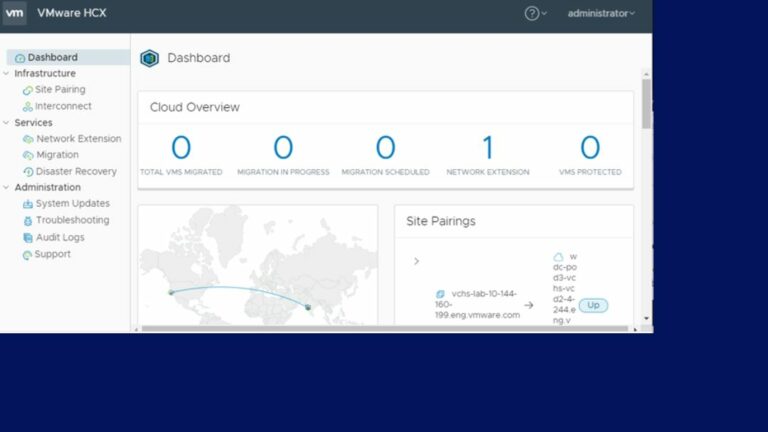
- VMware HCX offers several migration methods, including Bulk Migration and Replication Assisted vMotion (RAV). It is used for large-scale migration to Cloud environments or data centre consolidation.
Execute migration
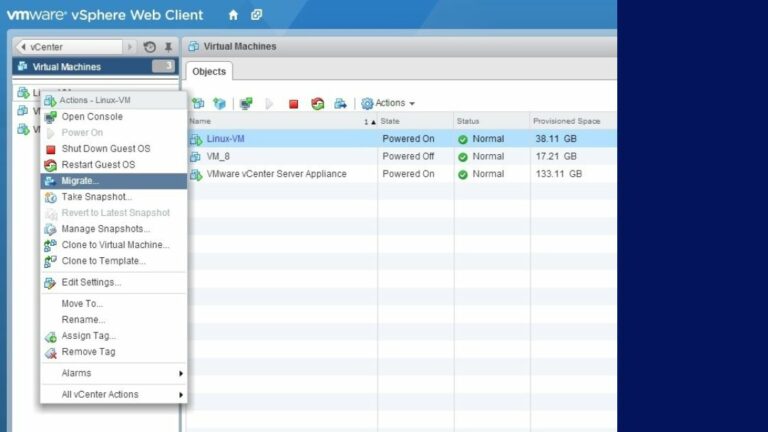
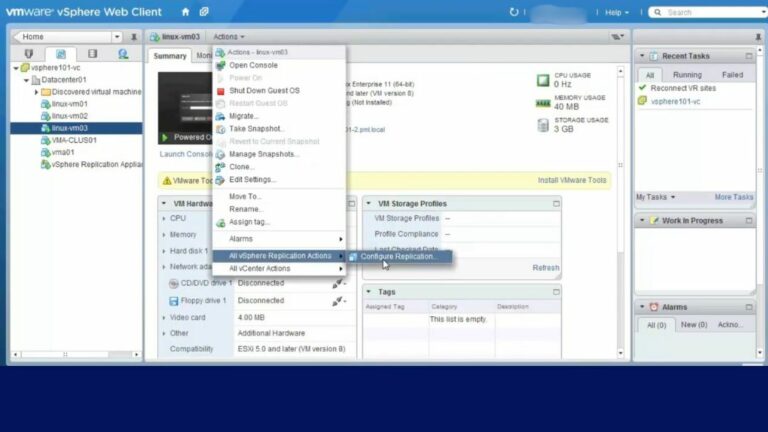
Use the vCenter interface to start the migration process. vCenter is not absolutely necessary for all migration operations, but it is strongly recommended and makes the process much easier. Other options are available, such as direct management via ESXi, the VMware vSphere Client, or VMware vSphere Replication.
On balance, vCenter greatly simplifies how to manage and execute migrations in a VMware environment and when it comes to complex operations, it is virtually indispensable.
Validate and optimise post-migration
Verify that the VM is running properly on the target host. Also verify that all network and storage configurations are correct and functioning as expected.
3 ways in which to migrate to VMware
Hot vs. cold migration
A cold migration is the most basic type; it requires powering off the VM. The advantage is that there is no risk of errors during the transfer of active memory; the disadvantage is that applications requiring high availability are affected by the shutdown. This strategy is used for major hardware or software updates.
Live migration is a strategy used to address the issues associated with cold migration. It allows a running VM to be moved from one host to another without any service interruption. This method uses technologies such as vSphere vMotion. Its main drawback is that it consumes a significant amount of network bandwidth, which can cause network congestion if the network is not properly sized or if it is being used for other bandwidth-intensive tasks. Furthermore, it is also more complex and more expensive. It is used, for example, for scheduled server maintenance without service interruption.
Using VMware vMotion
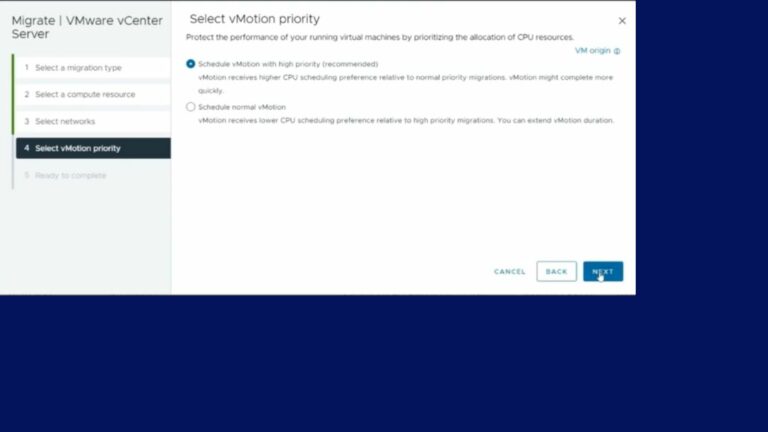
vMotion is a module in the VMware vSphere suite that enables hot VM migration without service interruption.
To use vMotion effectively, certain hardware and software requirements must be met:
- VMware vSphere Enterprise Plus or vSphere Standard licences with vMotion.
- Minimum vSphere version: vSphere 5.1.
- Hosts must have compatible processors to ensure seamless VM migration.
- VMs must reside on shared storage that can be accessed by both source and target hosts (SAN, iSCSI or NAS).
- Each host must have a network interface dedicated to vMotion traffic, ideally on a secure, high-bandwidth network. Enabling Jumbo frames can optimize transfer performance.
Migrating with VMware vSphere Replication
VMware vSphere Replication is an extension of VMware vCenter Server that enables the replication and recovery of VMs. It protects them against partial or total site failures. In addition, it is an excellent alternative to storage-based replication: it is less expensive and allows you to choose the storage provider at both the source and target sites.
vSphere Replication can be used with the vCenter Server Appliance or a standard vCenter Server installation and is compatible with version N-1 of vSphere Replication on the paired site.
Recovery Point Objectives (RPOs) are essential to a replication strategy. The RPO defines the maximum amount of data that can be lost in the event of a major failure and influences the replication strategy:
- A shorter RPO requires more frequent data replication, which increases the load on the network and storage.
- Stricter RPOs require greater network and storage resources to ensure that data is replicated within the required timeframes.
Depending on business requirements, administrators can set different RPOs for each VM, adjusting the replication frequency accordingly.
Ebook gratuit
Overcoming challenges
Solving compatibility problems
Virtual machine compatibility
Each version of virtual hardware supports multiple versions of ESXi; for example, a VM compatible with ESXi 7.0 Update 3 can run on all versions of ESXi 7.0 Update 3 and later. To check VM compatibility:
- When creating a VM, select a compatibility that matches the version of the target ESXi host.
- If the latest capabilities are not needed, you can choose an earlier version, which helps to facilitate deployment and testing while maintaining compatibility with older hosts.
Host hardware compatibility
vSphere Lifecycle Manager (vLCM) is used to verify this compatibility based on the VMware Compatibility Guide (VCG) or the vSAN Hardware Compatibility List (HCL). To do this:
- Access vLCM in vSphere Client, select the standalone host or the host in a cluster, then go to the Updates tab and select Hardware Compatibility.
- Select the target ESXi host and run a check to generate a detailed compatibility report.
- Examine the status of hardware devices (Compatible, Incompatible, Unknown) and manually check specific details if necessary to ensure compatibility.
Managing service interruptions
VMware’s vSphere is a great solution for both lowering instances of unplanned downtime, as well as reducing planned downtime (hardware maintenance, server migrations, etc.) – in general terms, this can account for over 80% of downtime in a data centre.
vSphere High Availability (HA) uses multiple ESXi hosts configured as a cluster to ensure rapid recovery after an outage. This feature provides high availability at a lower cost for applications running on VMs.
For an even higher level of availability, vSphere Fault Tolerance ensures uninterrupted service continuity, even in the event of hardware failure. vCenter High Availability protects vCenter Server against hardware and software failures, as well as vCenter Server application failures.
Securing data during migration
First, you must encrypt the data using vSphere vMotion encryption. This feature automatically applies encryption when migrating encrypted VMs. If some of your VMs are not encrypted, you can select one of the encrypted options in vSphere vMotion.
Next, secure your network with firewalls and intrusion detection and prevention systems. VMware documentation recommends network isolation best practices:
- The vSphere management network, because the services running on the management interface enable a hacker to gain access to systems.
- IP storage traffic, since it is generally unencrypted. It is therefore a good idea to separate it from production traffic.
- vMotion traffic, because vMotion migration information is transmitted in plain text and is easily visible. To prevent this, make sure that no Layer 3 routers extend this network.
Finally, don’t neglect backing up your VMs. There are three methods available to you:
- A backup agent is installed directly on each VM and operates just as it would on a physical server. Data is transferred to the backup infrastructure via the local area network (LAN).
- The Backup Agent is installed in the ESX service console and backs up the VMDK files (virtual disks) of each VM.
- VMware Consolidated Backup (VCB) centralizes VM backups and offloads this task from the ESX server. This configuration reduces backup traffic on the network and frees up server resources to improve VM performance.
Best practices for a successful migration
Detailed planning and documentation
Clear and detailed documentation allows you to plan your migration carefully. To do this, clearly define your objectives to ensure that the solutions you’re considering truly meet your company’s needs and therefore provide the best return on investment. Your objectives describe the expected results and address questions such as:
- Why did you decide to migrate?
- What impact will migration have on users?
- What impact will this have on security?
- What are the risks and how can they be mitigated?
- What is the estimated cost of migration?
- What is the estimated return on investment?
Hardware consolidation is not the only aspect of a migration to VMware.
To derive maximum benefit from virtualisation and achieve the best return on investment, a company also needs to consider which people and processes will be involved.
Document each step of the migration process, including detailed guides for configurations, procedures, and troubleshooting. Your runbook will then be a valuable tool.
Perform pre-migration tests
Before migrating your VMware environments, it’s essential to carry out pre-migration tests to identify and resolve potential problems and ensure system compatibility.
Start off by performing automatic checks, such as disk space capacity on the target VM or physical server, and external database accessibility.
Next, you need to check the source environment by verifying:
- Compatibility of vCenter Server, Platform Services Controller or vCenter Single Sign-On versions with the migration.
- SSL certificate validity and compatibility.
- Network connectivity and DNS resolution.
- Availability of internal and external ports.
- External database connectivity.
- Disk space required for exporting configuration data.
- NTP server validity.
- Accuracy of all references and identifying information.
The next stage is to then check the target environment in the same way (minimum hardware requirements, administrative privileges, credentials).
Finally, carry out a number of tests:
- Performance test.
- Application compatibility testing.
- Toggle simulation.
- Safety test.
Take Back Control of Your Cloud
Communicating with stakeholders
Maintaining open and regular communication with all stakeholders is one of the keys to a successful migration. VMware documentation also recommends creating scenarios. In organizations where management and operations teams are separate, validating a scenario helps clarify current and future capacity requirements. Once scenarios are validated, capacity is reserved, which prevents the operations team from scaling up resources for workloads while the management team focuses on resource planning for new projects.
VMware migration tools
VMware vCenter Converter
VMware vCenter Converter is an essential tool for migrating physical and virtual machines to VMware environments. It allows you to P2V (Physical to Virtual) and V2V (Virtual to Virtual) conversions.
In addition to these features, vCenter Converter allows you to convert images between different versions of VMware. Although the tool lets you schedule and automate certain tasks, it is primarily designed for specific, manual operations, rather than for large-scale automation management
VMware HCX
VMware HCX is a platform designed to facilitate application migration, balance workloads, and ensure business continuity in data centers and cloud environments. It enables the movement of workloads between on-premises environments and public or private clouds, and ensures operational continuity through failover and disaster recovery capabilities. It also provides automation tools for large-scale migrations and the ongoing management of hybrid environments.
Therefore, VMware vCenter Converter is best suited to complex, large-scale, continuous, hybrid migrations between on-premises and Cloud environments, with a focus on business continuity and advanced automation.
Other recommended third-party tools
In addition to the tools provided by VMware, we would also recommend several third-party tools based on how efficient they are:
- Acronis Cyber Protect Cloud offers migration capabilities as well as data backup and protection. It facilitates P2V, V2V, and V2C (Virtual to Cloud) migrations while ensuring data security with features such as built-in malware protection.
- Carbonite Migrate enables fast and flexible migration of workloads with minimal downtime. It supports P2V, V2V, and V2C migrations, with the ability to repeat migration tests until you are ready to switch over to the target environment.
- Zerto Virtual Replication is designed for disaster recovery, but also offers seamless migration capabilities. It uses continuous replication to ensure application availability during migration between on-premises and cloud environments.
- Platespin Migrate offers P2V, V2V and P2P (Physical to Physical) migrations, centralised migration management and pre-configured migrations to minimise downtime.
- CloudEndure Migration supports migration to major cloud providers such as AWS, Azure, and Google Cloud. CloudEndure uses continuous replication to minimize downtime and provides automated migration orchestration.
How Qim info supports your WMware migration
Qim info provides your company with the best possible support in three different areas.
- Collaboration and transparency: together, we improve the coordination of your team by proposing appropriate processes and tools. We bring teams together and unite them around a common vision so that they are empowered to make the best decisions.
- Tailored to Your Needs: No two migrations are alike. Our experts work closely with you to understand your needs and challenges and implement the best, most suitable solution.
- Multidisciplinary expertise: With nearly 20 years in business, Qim info has developed a wide range of expertise across all areas of IT. Whether you choose outsourcing or a project-based approach with a dedicated team, we have the solution.
In conclusion, our experts in the Cloud & DevOps Solutions department are available to answer any questions you may have about migrating to VMware. If you have questions about virtualization options other than VMware —such as Proxmox VE, Nutanix, or OpenStack—amid the turmoil surrounding Broadcom’s acquisition of VMware, we’re here to help you make sense of it all.