

OneDrive for storage vs. SharePoint for collaboration. If it were that simple, there wouldn’t be so much confusion in the workplace. In reality, these two Microsoft tools are often misused, leading to disorganized files, poorly managed access rights, and wasted time on a daily basis.
🔑 Key takeaways:
- OneDrive → Personal Files.
- SharePoint → Teamwork.
- A team document should not be stored in OneDrive.
- The two tools are compatible and complementary.
SharePoint vs. OneDrive: A Quick Comparison
| Criterion | OneDrive | SharePoint |
|---|---|---|
| Usage | Individual work | Teamwork |
| File type | Personal | Shared |
| Collaboration | Occasional | Permanent |
| Who manages access? | You | The team / the company |
| Use Cases | Drafts, personal documents | Team documents, collaborative projects |
Which tool should you choose based on your needs?
OneDrive → for storing and managing your personal files.
SharePoint → for sharing and organizing team documents.
👉 Simple rule:
- Individual work → OneDrive.
- Teamwork → SharePoint.
When should you use SharePoint?
Use SharePoint whenever a file or project involves multiple people. Specifically:
- Teamwork → shared documents.
- Access Management → Permissions by team, department, or project.
- Permanent documents → that must remain accessible even if someone leaves the company.
- Optionto embed a document directly on the company’swebsite.
❌ Do NOT put the following in SharePoint:
- personal files,
- temporary documents,
- unfinished drafts.
When should you use OneDrive?
Use OneDrive when the file is personal or part of an individual project. Specifically:
- Working alone → drafts, works in progress.
- Personal files → notes, exports, which you retain ownership of.
- One-time sharing → send a file without setting up a team space.
- Temporary storage → before uploading it to SharePoint.
- Sole ownership → You are the sole owner.
❌ Do NOT put the following in OneDrive:
- team documents,
- critical files,
- long-term shared folders.
What are SharePoint and OneDrive?
SharePoint

SharePoint is a Microsoft 365 tool designed to store, organize, and share documents within a team. It allows you to create collaborative spaces (team sites or intranets) to:
- centralize information,
- manage access,
- work together on the same files.
SharePoint offers a wide range of features that go far beyond document storage and sharing:
- Create workspaces: team sites, libraries, and project-based organization.
- Set up an intranet: internal pages, communications, news.
- SharePoint is the foundation of Teams (files are stored there).
- Automating Processes: Workflows and Integration with Power Automate.
💡If you’re interested in this topic, you can check out our case study on modernizing an IT services catalog on SharePoint, or our article on automating business workflows with Nintex Workflow and SharePoint. And of course, our comprehensive guide to the best collaboration tools can provide you with specific insights on the topic of enterprise collaboration.
OneDrive

If you have a Microsoft account or navigate on a device equipped with Windows, you are familiar with OneDrive, a personal storage space that allows for synchronisation, sharing, and online file storage. Once your files are saved on OneDrive, all you need is a reliable internet connection to access them.
As a result, collaboration capabilities remain limited, and managing files and access rights requires taking certain precautions.
Similarities Between SharePoint and OneDrive
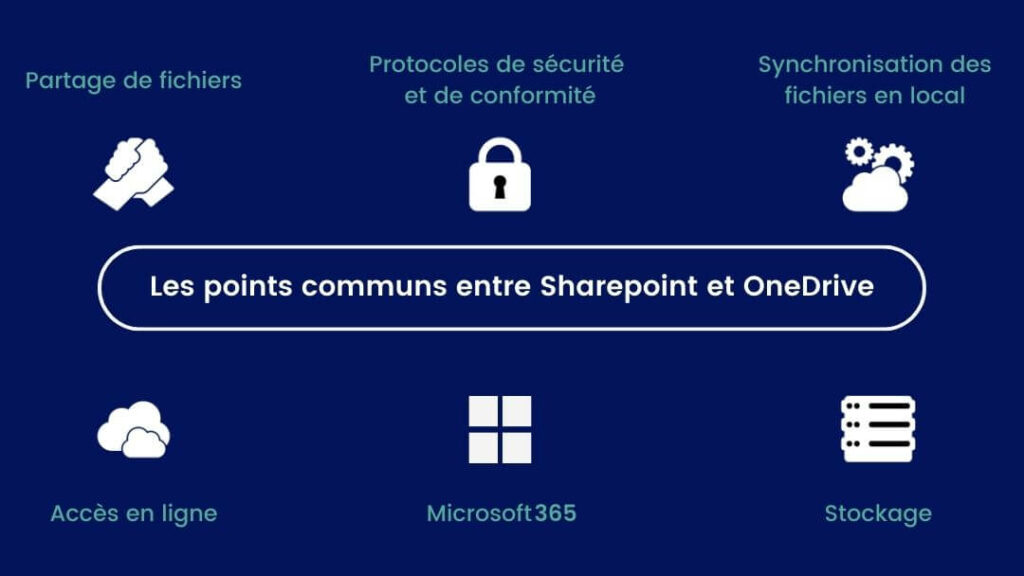
File sharing

The ability to share files, both internally and with external partners, is a fundamental characteristic of both SharePoint and OneDrive. Whether it’s for a group project, a client presentation, or getting feedback on a document, these two tools are effective.
Local file synchronisation

With SharePoint and OneDrive, you can easily synchronise your files locally, whether it’s on your desktop computer, tablet, or smartphone, thus ensuring continuity of access to your essential resources, even offline.
Microsoft 365 Cloud Service
Microsoft 365 serves as the central hub, bringing together various products—including OneDrive and SharePoint—to provide an integrated user experience. As a result, these two tools are fully compatible with each other, as well as with tools such as Teams, Word, Excel, and PowerPoint.
📍 Note: Historically, SharePoint was also available as an on-premises version, but support for it will end in 2026. OneDrive, on the other hand, has always been designed as a 100% cloud-based service.
Storage

Both OneDrive and SharePoint offer dedicated spaces for storing your documents. They allow for real-time co-editing of documents, thereby promoting collaboration. In addition, aversion history feature is available on both platforms, allowing you to track and restore previous changes to a file.
Security protocols and compliance

File security is a priority for SharePoint and OneDrive. These platforms ensure that data is encrypted, whether it is being transferred or stored. In addition, in the event of accidental deletion or data loss due to an attack, they offer tools to restore files or libraries to previous states. Finally, both platforms include features to ensure regulatory compliance, making it easier to meet various legal obligations related to data management.
📍 Note: Historically, SharePoint could be deployed on-premises, but this model is now on the decline and no longer offers a security advantage.
Multi-platform

They can be used on computers (PCs and Macs) or mobile devices (smartphones and tablets) thanks to dedicated apps.
Thus, the common points between OneDrive and SharePoint are quite numerous. However, there are also several differences between the two tools, which should help you make a choice.
The main differences between the two solutions
Let’s explore the nuances that distinguish these two major Microsoft tools in the field of online storage and collaboration.
Primary use

SharePoint is designed for collaborative work within teams or organizations, with content that is shared and structured collectively.
OneDrive, on the other hand, focuses on personal storage space, although it also allows users to share files with others on an ad hoc basis.
File ownership

In OneDrive, files are associated with a user: the user owns them and manages how they are shared, even though the organization retains overall control through administration.
In SharePoint, files belong to a site (team or project) and are managed collectively. Access rights are defined at the site or library level, typically by site administrators.
- SharePoint: Files are accessible to the entire team and can be shared in real time.
- OneDrive: Files are private at first, and then you can share them.
Permission management

In OneDrive, users can manage file sharing by assigning access rights (read, edit) within the framework of the rules defined by the organization.
In SharePoint, permissions are structured across multiple levels (site, library, folder, file) and are generally managed by site owners, with a system of permission inheritance.
Publishing on a website

SharePoint allows you to create and publish pages within sites (intranet or extranet) with structured content.
OneDrive, on the other hand, does not allow you to publish pages: it is limited to storing and sharing files via links.
How do I transfer documents from OneDrive to SharePoint?
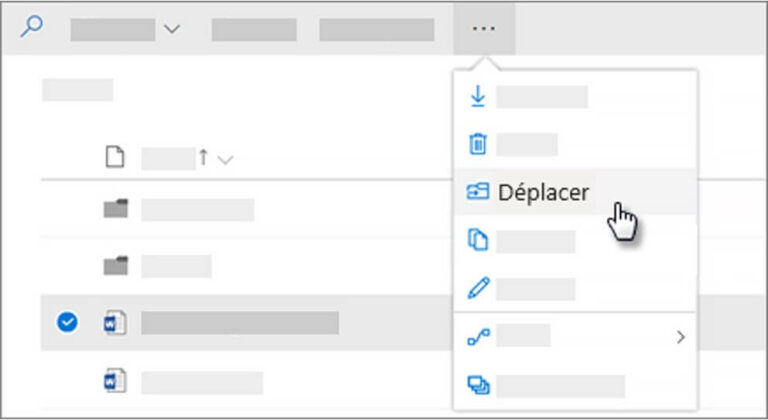
When certain documents—originally created for personal use—are no longer intended for personal use and become part of a team project, it may be necessary to transfer them from OneDrive to SharePoint. You can copy or move them directly from the Microsoft 365 interface.
- Step 1: Select files or folders from a SharePoint library.
- Step 2: In the command bar at the top, select ” Move to ” or ” Copy to.”
- Step 3: Choose a destination, then select “Move to” or “Copy to.”
🔍 “Move to” means that the file is moved to a new location. “Copy to” means that the original remains in OneDrive and that there are two versions of the file. In practice, people often choose “move” to avoid duplicates. The Microsoft teams offer comprehensive help here.
FAQ: SharePoint vs. OneDrive
How do I choose between SharePoint and OneDrive?
To summarize, here are the three key criteria to consider when choosing between these two solutions:
- Your need for collaboration: if it’s strong and collaboration is an essential functionality, lean towards SharePoint.
- The simplicity of the solution: if your need is basic and the collaboration simple and limited, OneDrive could be your best ally.
- Your use cases Intranet/Extranet/Document Management or any other collaborative portal, SharePoint is the solution. Personal storage, limited sharing, backing up your work files, OneDrive will be more suitable.
That said, you may not need to choose one over the other: you might need both tools to function at your best.
What is the main advantage of SharePoint?
SharePoint ensures that documents remain accessible to the entire team, regardless of who the users are. Unlike OneDrive, files remain available even if an employee leaves the company.
What are the drawbacks of OneDrive?
- Not well suited for teamwork (limited project management and shared workspaces).
- Dependence on a single user (if the owner leaves, access may become an issue).
- Access management is more limited than in a collaborative environment such as SharePoint.
What is the best alternative to OneDrive?
If you’re already using Microsoft 365, the most logical alternative to OneDrive is SharePoint.
- SharePoint → for managing documents as a team and organizing workspaces.
- Microsoft Teams → to collaborate on files stored in SharePoint.
👉Aside from Microsoft, Google Drive is a simple alternative for collaborating online.